
On-Page Pins vs. Drawing on a Screenshot
Why Toado pins a bug to the element on the page instead of a circle on a picture of it, and what that changes for teammates and AI coding agents.
 Jason Long 4 min read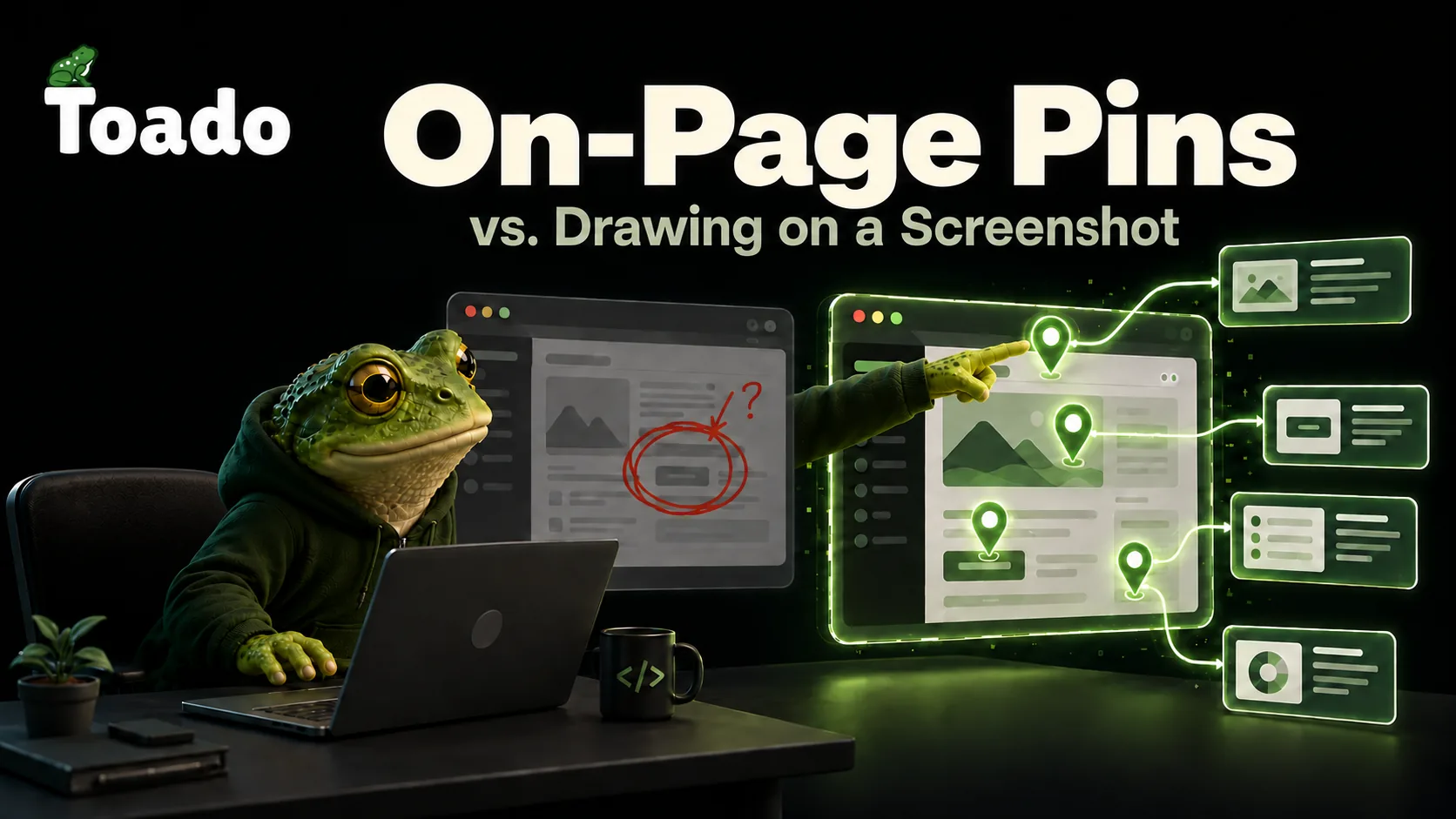
Every bug tool has annotation. You take a screenshot, you draw a red circle around the thing, you add an arrow, maybe some text. Toado has that too, and it is fine. But I kept running into the same limit with it, and the limit is the reason we built pins.
A circle on a screenshot points at pixels. It does not point at anything the app knows about.
The problem with pointing at pixels
Here is how a screenshot annotation goes wrong in practice. I circle a button on the settings page. A teammate opens the ticket the next day. The page has changed since I took the screenshot, so they open the app, find the settings page, and squint at my screenshot to work out which button I meant. Then they find it. That works, but it is a translation step, and every translation step is somewhere a bug report dies.
Now hand that same ticket to an AI coding agent. It gets a picture with a red circle. It can see the circle. It cannot click on it. It has to work out from the picture which component in the codebase renders that button, and it is guessing from visual cues. Sometimes it guesses right. When it does not, you get a fix to the wrong thing, delivered with confidence.
Two more problems, smaller but they add up. First, the annotation lives on the ticket, not on the page, so when you are back on the settings page tomorrow there is nothing telling you that three tickets are already open on it. Second, drawing takes time. Not a lot, but enough that the fourth bug in a session does not get drawn.
What a pin is
A pin is a bug attached to an element, not to a picture.
Press Alt+C on any page in Chrome. Click the thing that is wrong. A ticket composer opens with the screenshot and the exact DOM element already attached. Write a sentence, assign it, done. The element is stored as an anchor, which means Toado can find it again after the page has changed, not just at the pixel coordinates where it happened to be that day.
The marker stays on the page. Open the settings page next week and the pins are there, showing which tickets are still open and where. Your teammate does not squint at a screenshot. They open the page and the bug is pointing at itself.
What it changes for the agent
This is the part I care about most. When Claude Code reads a pinned ticket over MCP, it gets the element, not a picture of the element. It knows which node in the DOM you meant. That collapses the guessing step. The agent goes from “find the thing in the picture” to “find the component that renders this node,” which is a question it is good at answering.
The screenshot is still there. If you drew on it, the shapes are stored as vectors, so the agent can read them as coordinates instead of squinting at a raster. But the pin is what tells it where to go.
Pins inside a recording
Pins also do a second job. When you record a walkthrough, every pin you drop while talking becomes its own ticket, with the transcript of what you said around it. The pin is captured through the browser separately from the recording, so the screenshot and element are full quality even if you recorded narration only.
It is the same ticket shape either way. A pin on its own and a pin mid-recording both give the agent the element, the screenshot, and a description. The recording just adds your voice and lets you file six of them without stopping.
When to still draw on the screenshot
I am not going to tell you annotation is dead. It is the right tool when the bug is about the picture itself: this shade of green is wrong, this spacing is off by a few pixels, this whole region should not exist. A circle and an arrow say that faster than a pin does.
But when the bug is about a thing, pin the thing. It is faster for you, clearer for your teammate, and it is the difference between an agent that guesses and an agent that goes.
Pins are in the Chrome extension on every plan. Alt+C, click, type, done.