
Hit Record.
Open the pin control on any page and press Record. The extension records the tab and your microphone. No account for the page, no setup on the site, works on localhost.
Record a walkthrough of your app, point at what’s broken, and talk. Every pin you drop becomes a ticket with a screenshot, the element you pointed at, and your words as a transcript. Your AI coding agent reads it and starts on the fix.
Included on every plan. Up to 30 minutes per walkthrough on a paid plan, 5 minutes on the free plan. Works on localhost, staging, and prod.
The hard part of a bug report was never the screenshot. It was writing down what you expected, what happened instead, and where you were when it happened, for every bug, one at a time. So most bugs never got written down.
A walkthrough flips that. You look at the app and talk. Toado does the writing. Five minutes of clicking around and complaining turns into five or six tickets that each carry enough context for an agent to go fix them.
Open the pin control on any page and press Record. The extension records the tab and your microphone. No account for the page, no setup on the site, works on localhost.
Walk through the app like you would with a teammate. When you see something wrong, drop a pin on it (Alt+C) and say what you see. The pin grabs a screenshot and the exact element under your cursor.
Your narration is transcribed and split by pin. Each pin becomes its own ticket: screenshot, element, the words you said at that moment, and a clip of the screen if you recorded it.
Tickets land on the board. Claude Code, Cursor, or any MCP client reads the transcript, pulls the screenshot and clip, writes the fix, and moves the ticket to In Review.
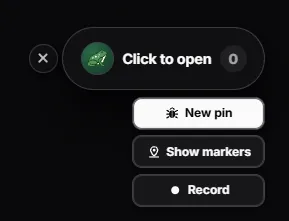
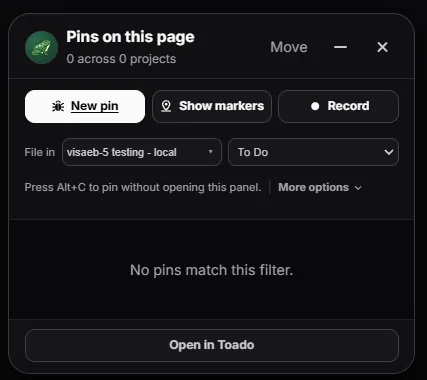
Pins are captured through the browser, separate from the recording, so the screenshot and element are full quality in either mode.
A full screenshot of the page at the moment you pinned, captured through the browser, not the video.
The exact DOM element you pointed at, anchored so it can be found again after the page changes.
The transcript of what you said around that pin. This becomes the ticket description your agent reads.
In screen-and-narration mode, a short video of the moment. Served to your agent through a one-hour signed URL.
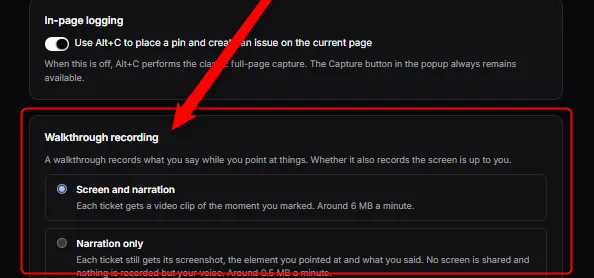
Pick a default in the extension settings. A project can also set the mode for everyone who records in it.
Records the tab and your voice. Each ticket gets a video clip of the moment you marked. Around 6 MB a minute.
Best for motion bugs: flicker, layout shift, animation, anything you cannot explain in a still.
Records your voice. Nothing on screen is recorded. Each ticket still gets its screenshot, the element you pointed at, and what you said. Around 0.5 MB a minute.
Best for copy, spacing, and logic bugs, or when the screen has things on it you do not want stored.
Not everything needs a recording. Press Alt+C on any page, click the thing that’s wrong, and a ticket composer opens with the screenshot and the element already attached. Write a line, assign it, done.
A walkthrough ticket is the best bug report an agent can get: the transcript says what
you expected and what you saw, the element says where, and the screenshot and clip
show it. The agent reads all of it with get_ticket and
get_capture_asset over MCP, no copy-paste, no re-explaining.
Clips are the expensive part, so they have a shelf life. Free workspaces keep clips for 7 days, Personal and Team keep them for 45. After that the clip is deleted from storage.
The screenshot, the element, the transcript, and the description are kept for as long as the ticket exists, on every plan. The transcript is what your agent reads, so it is never the thing that expires.
A walkthrough in progress is visible only to the person recording it. Nothing is shared with the team until the tickets are created.
The audio track is sent to OpenAI for speech-to-text and is not used to train their models under the API terms. Privacy policy and security page have the details.
Up to 30 minutes per recording on a paid plan, and 5 minutes on the free plan. Paid plans also include 600 minutes of recording a month and 300 minutes of transcription; the free plan includes 60 and 30. Most people record for two to five minutes and end up with a handful of tickets.
Video clips are kept for 7 days on the free tier and 45 days on Personal and Team. After that the clip is deleted. The ticket, its screenshot, the element, and the transcript stay as long as the ticket does.
No. Once processing and transcription finish, Toado files the tickets for you. If the workspace is out of ticket quota, the walkthrough waits in review until you free some up or upgrade.
Audio is sent to OpenAI for speech-to-text. Under OpenAI’s API terms it is not used to train models. The full disclosure is in the privacy policy.
Yes. Alt+C on any page places a pin and opens a ticket composer with the screenshot and element already attached. Markers stay on the page so you and your team can see which tickets are open where.
Chrome. Recording uses the Chrome extension on any site you can open, including localhost and staging.
Install the extension, open the app you are working on, press Record, and complain out loud. The tickets will be waiting.